# Administrator Password Recovery for 300, 350, 500 and 550 Series Switches

<div class="row blowout wide-narrow-v2 visitedlinks" id="bkmrk-save-translations-do"><div class="col wide-v2"></div></div>## Objective

In situations where the administrator password is lost or forgotten, you can manually reset the password through the Command Line Interface (CLI) of the switch. This requires a physical connection to the console port of the device so that the user can power cycle the switch, enter the boot menu, and start the password recovery procedure. This procedure allows the user to login to the device without password authentication.

The objective of this document is to show you how to recover and configure the administrator password for Sx300, Sx350, SG350X, Sx500, and Sx550X Series Switches.

Cisco 200 Series Small Business Managed Switches do not support the CLI.

### Applicable Devices | Software Version

<div class="row blowout wide-narrow-v2 visitedlinks" id="bkmrk-sx300-series-%7C-1.4.1"><div class="col wide-v2"><div>- Sx300 Series | 1.4.11.5
- Sx350 Series | 2.5.5.47
- SG350X Series | 2.5.5.47
- Sx500 Series | 1.4.11.5
- Sx550X Series | 2.5.5.47

<div class="cdt-note">  
</div></div></div></div>The password recovery procedure is the same for all software versions. It is not dependent on a specific software version.

## Return the Switch to Factory Default Settings

If you don't have any configurations that you need to save (or you have backed up your configurations), you can perform a factory reset. Simply press the **Reset** button for more than 10 seconds using an open paperclip. This will reset the switch to the default password of *cisco*.

## Recovering the Network Administrator Password

Step 1. Access the CLI via a local console connection. For more information on how to access the CLI in this manner, please refer to [*Access the CLI for 300 and 500 Switches via PuTTY Using a Console Connection.*](https://www.cisco.com/c/en/us/support/docs/smb/switches/cisco-small-business-300-series-managed-switches/smb4984-access-the-cli-via-putty-using-a-console-connection-on-300-a.html)

You must have access to the local console connection to recover the administrator password. You cannot recover the administrator password remotely from a Telnet or Secure Shell (SSH) session to the management interface.

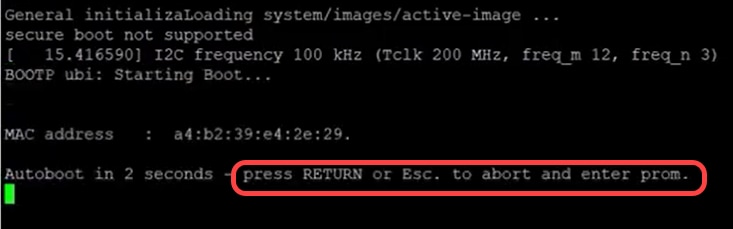
Step 2. Power cycle the switch by unplugging the power cord and plugging it back in to the back of the device. After a couple of seconds you should see the Cisco ASCII logo with a prompt to escape the Autoboot loader. Press **Return** or **Esc** immediately to enter the Startup Menu.

<div class="row blowout wide-narrow-v2 visitedlinks" id="bkmrk--1"><div class="col wide-v2"><div>[![](https://www.cisco.com/c/dam/en/us/support/docs/smb/switches/cisco-small-business-300-series-managed-switches/images/rubentim-7162014-step1.png)](https://www.cisco.com/c/dam/en/us/support/docs/smb/switches/cisco-small-business-300-series-managed-switches/images/rubentim-7162014-step1.png "Related image, diagram or screenshot.")<div class="cdt-note">  
</div></div></div></div>Power cycle with the console cable and Putty connected. If the device goes into Autoboot sequence, you can reattempt to enter the Startup Menu by power cycling the device again.

The *Startup Menu* appears:

<div class="row blowout wide-narrow-v2 visitedlinks" id="bkmrk--2"><div class="col wide-v2"><div>[![](https://www.cisco.com/c/dam/en/us/support/docs/smb/switches/cisco-small-business-300-series-managed-switches/images/rubentim-7162014-step2.png)](https://www.cisco.com/c/dam/en/us/support/docs/smb/switches/cisco-small-business-300-series-managed-switches/images/rubentim-7162014-step2.png "Related image, diagram or screenshot.")</div></div></div>Step 3. Press **3** to select option *\[3\] Password Recovery Procedure*. This will reset the password to null.

<div class="row blowout wide-narrow-v2 visitedlinks" id="bkmrk--3"><div class="col wide-v2"><div>[![](https://www.cisco.com/c/dam/en/us/support/docs/smb/switches/cisco-small-business-300-series-managed-switches/images/rubentim-7162014-step3.png)](https://www.cisco.com/c/dam/en/us/support/docs/smb/switches/cisco-small-business-300-series-managed-switches/images/rubentim-7162014-step3.png "Related image, diagram or screenshot.")</div></div></div>Step 4. Press **Enter** to go back to the Startup Menu, and then press **Esc** to exit. This will start the Autoboot sequence.

<div class="row blowout wide-narrow-v2 visitedlinks" id="bkmrk--4"><div class="col wide-v2"><div>[![](https://www.cisco.com/c/dam/en/us/support/docs/smb/switches/cisco-small-business-300-series-managed-switches/images/rubentim-7162014-step2escape.png)](https://www.cisco.com/c/dam/en/us/support/docs/smb/switches/cisco-small-business-300-series-managed-switches/images/rubentim-7162014-step2escape.png "Related image, diagram or screenshot.")<div class="cdt-note">  
</div></div></div></div>It is important to follow the sequence mentioned in Steps 3 and 4.

Step 5. After the switch has fully booted, you will be in password recovery mode. However, before changing any usernames or passwords, enter the following commands to avoid overwriting the existing configuration on the switch:

Switch#<samp>enable</samp>

Switch#<samp>copy startup-config running-config</samp>

<div class="row blowout wide-narrow-v2 visitedlinks" id="bkmrk--5"><div class="col wide-v2"><div><div class="kbd-cdt" data-label="Click to copy command">  
</div>[![](https://www.cisco.com/c/dam/en/us/support/docs/smb/switches/cisco-small-business-300-series-managed-switches/images/ruben-09222014-stepcopystartuprunning.png)](https://www.cisco.com/c/dam/en/us/support/docs/smb/switches/cisco-small-business-300-series-managed-switches/images/ruben-09222014-stepcopystartuprunning.png "Related image, diagram or screenshot.")<div class="cdt-note">  
</div></div></div></div>In order to use backspace in the CLI, use the arrow keys to highlight the desired character and then hit **Backspace** to delete the character. You can also hold down **Backspace** to continuously delete characters to the right of the highlighted cursor.

Step 6. In order to change the administrator password, you must enter configuration mode. To enter configuration mode, enter one of the following commands based on your access level:

Switch#<samp>configuration terminal</samp>

<div class="row blowout wide-narrow-v2 visitedlinks" id="bkmrk--6"><div class="col wide-v2"><div><div class="kbd-cdt" data-label="Click to copy command">  
</div>[![](https://www.cisco.com/c/dam/en/us/support/docs/smb/switches/cisco-small-business-300-series-managed-switches/images/ruben-09222014-step6config.png)](https://www.cisco.com/c/dam/en/us/support/docs/smb/switches/cisco-small-business-300-series-managed-switches/images/ruben-09222014-step6config.png "Related image, diagram or screenshot.")</div></div></div>Step 7. Enter the following command to change the password of any given user:

Switch(config)#<samp>username*&lt;new or previous username&gt; privilege 15 password &lt;new password&gt;*</samp>

Default password complexity settings require that the password contain at least 3 character classes such as a capital letter, a lowercase letter, and a number.

<div class="row blowout wide-narrow-v2 visitedlinks" id="bkmrk--7"><div class="col wide-v2"><div><div class="cdt-note">  
</div>*[![](https://www.cisco.com/c/dam/en/us/support/docs/smb/switches/cisco-small-business-300-series-managed-switches/images/rubentim-7162014-step6edited.png)](https://www.cisco.com/c/dam/en/us/support/docs/smb/switches/cisco-small-business-300-series-managed-switches/images/rubentim-7162014-step6edited.png "Related image, diagram or screenshot.")*<div class="cdt-note">  
</div></div></div></div>The command in the screenshot above sets the password for *username1* to *Password1*. If *username1* does not exist as a user on the switch, a new user account is created.

Step 8. Enter the following commands to exit configuration mode and write to the configuration file.

Switch(config)# <samp>exit</samp>

Switch# <samp>write</samp>

<div class="row blowout wide-narrow-v2 visitedlinks" id="bkmrk--8"><div class="col wide-v2"><div><div class="kbd-cdt" data-label="Click to copy command">  
</div>*[![](https://www.cisco.com/c/dam/en/us/support/docs/smb/switches/cisco-small-business-300-series-managed-switches/images/rubentim-7162014-step7.png)](https://www.cisco.com/c/dam/en/us/support/docs/smb/switches/cisco-small-business-300-series-managed-switches/images/rubentim-7162014-step7.png "Related image, diagram or screenshot.")*</div></div></div>Step 9. Enter **Y** to overwrite the startup configuration file.

Step 10. Enter the following command to reboot the system so that you can log in with your newly configured username and password:

Switch# <samp>reload</samp>

<div class="row blowout wide-narrow-v2 visitedlinks" id="bkmrk--9"><div class="col wide-v2"><div><div class="kbd-cdt" data-label="Click to copy command">  
</div>*[![](https://www.cisco.com/c/dam/en/us/support/docs/smb/switches/cisco-small-business-300-series-managed-switches/images/ruben-09222014-stepreload.png)](https://www.cisco.com/c/dam/en/us/support/docs/smb/switches/cisco-small-business-300-series-managed-switches/images/ruben-09222014-stepreload.png "Related image, diagram or screenshot.")*</div></div></div>Step 11. Enter **Y** to continue. Your device will then reboot.

<div class="row blowout wide-narrow-v2 visitedlinks" id="bkmrk--10"><div class="col wide-v2"><div id="bkmrk--11">*[![](https://www.cisco.com/c/dam/en/us/support/docs/smb/switches/cisco-small-business-300-series-managed-switches/images/ruben-09222014-reloadyesshuttingdown.png)](https://www.cisco.com/c/dam/en/us/support/docs/smb/switches/cisco-small-business-300-series-managed-switches/images/ruben-09222014-reloadyesshuttingdown.png "Related image, diagram or screenshot.")*</div></div></div>