Windows OS Info
- Completely Remove an Installation of MS Office
- Fixing a Missing Local Account on Windows Login
- Rebuild Windows 10 Boot Partition
Completely Remove an Installation of MS Office
Step 1
Download the Microsoft Support and Recovery Assistant (Formerly Microsoft Office Removal Tool). (Current version at time of writing is attached to this doc). The Microsoft Support and Recovery Assistant should work for any version of Microsoft Office (Office 2007, Office 2013, Office 2016, Office 365) on any modern version of Windows (Windows 7, Windows 8/8.1, Windows 10)
Step 2
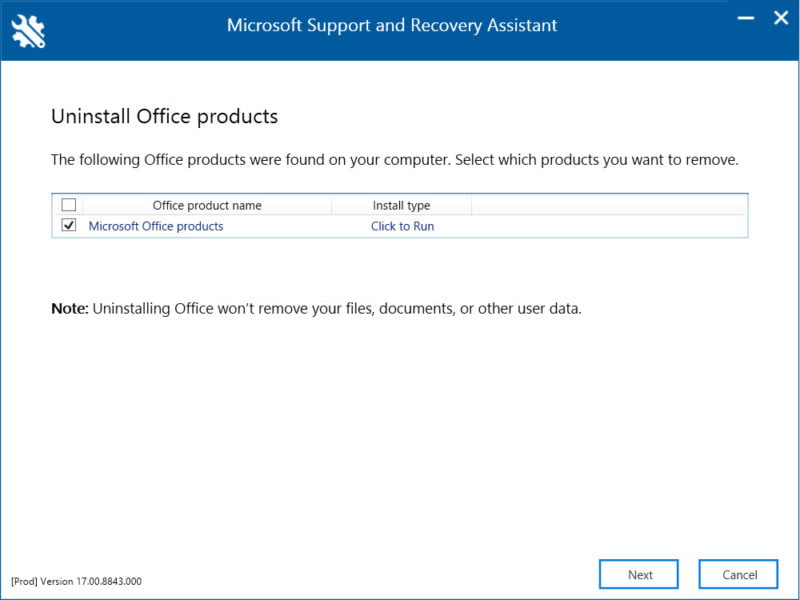
Open the Microsoft Support and Recovery Assistant and follow the instructions as prompted. You should have an option to select “Microsoft Office products” to remove Microsoft Office using the tool. Once the process is completed, go ahead and restart your system. Microsoft Office should be completely removed.
Fixing a Missing Local Account on Windows Login
When you create a new user in Windows using the "net user" command, the user account is created at the command prompt level, but it may not be automatically displayed on the login screen.
To make the newly created user account available for login on the lock screen, you can follow these steps:
-
Open the "Settings" app by pressing the Windows key + I.
-
Click on "Accounts" and then select "Family & other users" from the left-hand menu.
-
Click on the "Add someone else to this PC" button under the "Other users" section.
-
In the "How will this person sign in?" window, select the "I don't have this person's sign-in information" option.
-
In the "Let's create your account" window, click on the "Add a user without a Microsoft account" option.
-
Fill in the necessary details for the new user account, such as the username and password.
-
Click on the "Next" button and follow the on-screen instructions to complete the process.
Once the new user account has been created using these steps, it should be displayed on the login screen and you can use it to login to Windows.
If you're running Windows 10 Pro and you don't see the "Family & other users" option in the Settings app, it's possible that your system administrator has restricted access to this feature. In that case, you may need to use the Computer Management console to add the new user and grant the appropriate permissions to allow them to log in to the system.
To create a new user account and grant them login permissions using the Computer Management console, follow these steps:
-
Open the Computer Management console by searching for "Computer Management" in the Start menu.
-
In the console, expand the "Local Users and Groups" node and select the "Users" folder.
-
Right-click on an empty area in the right-hand pane and select "New User" from the context menu.
-
In the "New User" dialog box, enter the user's name, username, and password, and select any other options as needed.
-
Click the "Create" button to create the new user account.
-
Right-click on the new user account and select "Properties" from the context menu.
-
In the "Properties" dialog box, select the "Member of" tab.
-
Click the "Add" button and enter the name of the group that you want to add the user to, such as "Users" or "Administrators".
-
Click the "OK" button to save the changes.
Once you have created the new user account and added them to the appropriate group, they should be able to log in to the system using the credentials you provided.
If you've created a new user account in Windows using the "net user" command or the Computer Management console, but the user is still not showing up as a login option, you can try the following steps:
-
Press the Windows key + R to open the Run dialog box.
-
Type "netplwiz" in the Run dialog box and press Enter.
-
In the "User Accounts" window that opens, check the option "Users must enter a user name and password to use this computer".
-
Click on the "Add" button to add a new user account.
-
Follow the on-screen instructions to create the new user account.
-
Once the new user account has been created, select it from the list of users and click on the "Properties" button.
-
In the "User Properties" window, make sure that the "User cannot change password" and "Password never expires" options are unchecked.
-
Click on the "OK" button to save the changes.
-
Restart your computer and check if the new user account is now displayed on the login screen.
If the new user account is still not displayed on the login screen after following these steps, you may need to check the group membership and permission settings for the user account to ensure that they have the necessary rights to log in to the system.
If the new user account is still not showing up on the login screen after following the previous steps, you can try the following solutions:
-
Ensure that the new user account is not disabled. You can check this by opening the Computer Management console, expanding the "Local Users and Groups" node, and selecting the "Users" folder. Right-click on the user account and select "Properties" from the context menu. In the "Properties" dialog box, make sure that the "Account is disabled" option is not checked.
-
Check that the new user account has the necessary permissions to log in. You can do this by opening the Local Security Policy tool by searching for "Local Security Policy" in the Start menu. In the tool, expand the "Local Policies" node and select the "User Rights Assignment" folder. Check that the new user account is listed in the "Allow log on locally" policy.
-
Ensure that the new user account is not hidden from the login screen. You can check this by opening the Registry Editor by searching for "regedit" in the Start menu. In the editor, navigate to the following key: HKEY_LOCAL_MACHINE\SOFTWARE\Microsoft\Windows NT\CurrentVersion\Winlogon. Look for the "SpecialAccounts" key and expand it. Check if the new user account is listed under "UserList". If it is not, right-click on the "UserList" key and select "New > DWORD (32-bit) Value". Name the new value with the name of the new user account, and set its value to 1.
-
If none of the above steps work, you can try creating a new user account with a different username to see if it appears on the login screen. If it does, you can try copying the profile settings from the original user account to the new account.
It's important to note that making changes to the Registry can be risky, so it's recommended that you create a backup of the Registry before making any changes.
Rebuild Windows 10 Boot Partition
Boot from the install disc (DVD or USB)
Click Repair your computer
Choose Troubleshoot, then Command Prompt
Type these commands in the exact order shown below and press Enter after each command:
DISKPART
SEL DISK 0
LIST VOL
Select the volume number that has FAT32 under the FS column - it is usually volume 1:
SEL VOL 1
“1” is the number of the FAT32 partition printed in Diskpart
Assign a unique letter to this partition. The letter must not be already available on your computer, e.g. C: or D: or E:
ASSIGN LETTER=x:
The confirmation message should appear:
“DiskPart successfully assigned the drive letter or mount point”
Type exit to quit the Diskpart utility (step 4):
EXIT
Type the following command, but replace x: with the letter of the partition you chose earlier:
CD /d x:\EFI\Microsoft\Boot\
Type the bootrec command:
BOOTREC /FIXBOOT
Backup your old BCD configuration to create a new one:
REN BCD BCD.Bak
Type this command to replace the BCD, but remember to replace x: with the letter of the FAT32 partition mentioned earlier:
BCDBOOT c:\Windows /l en-us /s x: /f ALL
Remove the media from the drive: DVD or USB
Type EXIT
Hit Enter
Reboot the computer
If the EFI boot partition is missing or formatted:
EFI partition is usually volume 1 on a disk, about 500 MB.
If there is an unused or NTFS formatted vol 1 of the correct size open diskpart and format it to FAT32:
SEL VOL 1
FORMAT FS=FAT32
Once the disk is done formatting you will have to set the disk ID (GUID) to be an EFI system partition by issuing this command:
SET id=c12a7328-f81f-11d2-ba4b-00a0c93ec93b override
Once that is one you should be able to follow the instructions above.
More information:
https://neosmart.net/wiki/bootrec/#bootrec_RebuildBcd_doesn8217t_work